One Session End to End: From Warm-Up to Next Week's Load

The Stronkr Founder Founder, Stronkr
6 min read
On this page
This is the whole workout logging flow, in order, with nothing skipped: open the app on a training day, work through the sets, and see what your ratings do to next session’s load. No planning step at the start, no spreadsheet at the end.
The short version is that logging in Stronkr costs about what logging in any tracker costs, weight, reps, one more field, a button. What differs is the second half of the loop. In a tracker, the session ends when you close the app and the interpretation becomes your problem. Here the RPE you entered on each working set is an input, and the load for your next session is calculated from it before you get back to the gym. Below is that loop, set by set.
Key takeaways
- Today’s session is already built and already loaded when you open the app. There is nothing to plan.
- Logging a set is weight, reps, RPE, COMPLETE SET. The RPE field is the only real addition over a normal tracker.
- Warm-up marking and pain reporting are in-session controls, so the record is made while you remember it rather than reconstructed later.
- Your ratings set the load for your next session. Nothing changes mid-workout.
What This Looks Like in Stronkr
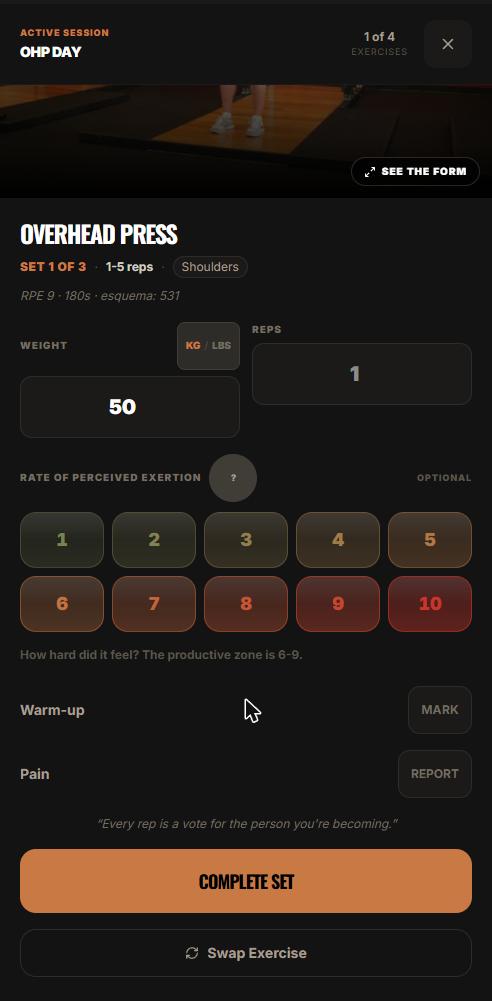
- Open the app on a training day. The session is ready, in this one, OHP DAY, with the first exercise queued: Overhead Press, Set 1 of 3.
- Do your ramp-up sets and log them, using MARK to flag each as a warm-up so the log separates them from your working sets.
- On a working set, enter the weight and the reps you completed. The KG/LBS toggle sits with the weight field, so you record whatever the plates in front of you say.
- Pick an RPE on the 1-10 selector, which runs green through red. The helper text underneath reads: “How hard did it feel? The productive zone is 6-9.” The
?opens the in-app explainer if you want the definitions mid-set. - Use REPORT if something hurt on that set, so it is recorded against the exercise rather than left in your memory.
- Tap COMPLETE SET and move on. If the movement is not going to work today, Swap Exercise is directly below.
Repeat through the session. The rest timer runs between sets, and the app works offline, which matters in the basement of a hotel gym with no bars of signal.
The logging is not the product. The logging is the input the product needs.
What happens when you open the app on a training day?
The session exists already. You are not choosing a workout, building one, or copying last week’s numbers forward, the routine came out of a roughly two-minute onboarding covering your equipment, your schedule and your experience level, and the loads on today’s session came out of the ratings you logged last time.
That is the part worth noticing, because it is where the 6am spreadsheet used to live. The decision about what goes on the bar today was made when you finished rating your last session, by the engine described in how RPE auto-progression works.
How do you log a working set properly?
Enter what actually happened, then rate it. Not what the program called for, what you did.
Weight and reps
Log the real numbers. If you were prescribed a load and got two reps fewer than planned, the two reps fewer are the data. Adjusting your log to match your program is how people end up with a history that describes an imaginary lifter.
The RPE rating
Pick the number immediately, before you rack the bar and start doing arithmetic about it. The question is how many more reps you could have completed with that weight, not how tired you feel. Rating drift is the single biggest threat to the whole loop, which is why rating your sets accurately is worth twenty minutes of your attention once.
The productive zone
The helper text on the screen sets the expectation: the productive zone is 6-9. Most working sets should land there. A session where everything came in at 10 is a session the engine will read as a reason to back off, and it should.
What are the warm-up and pain controls for?
MARK flags a set as a warm-up rather than a working set. Ramp-up sets are not sets you are trying to rate honestly, and separating the two while you are standing there is easier than reconstructing it from a list of numbers afterwards.
REPORT is for pain during the set. Its job is to get the fact recorded against the specific exercise, in the session where it happened, instead of leaving it in your memory until it is a pattern you cannot date. That is a training record, not a diagnosis, Stronkr programs around a cranky joint, it does not treat one.
If a movement keeps triggering it, the swap sheet under Swap Exercise offers same-muscle alternatives tagged by equipment, and the swap is permanent: choose it once and it holds for every future session, without you rebuilding the routine. That mechanism gets its own walkthrough in swap it once, it remembers.
Everything in this loop, the generator, the logging, the progression engine, is on the free tier, so there is no version of this walkthrough you cannot run yourself this week.
What happens between this session and the next one?
The arithmetic. Your ratings for each exercise go into the progression engine, and it returns a load for the next time that exercise comes up: a target increase, such as five pounds, or a deload of ten percent when the ratings spiked.
This is a between-sessions calculation and it is worth being precise about that, because it is the thing people assume works differently. Nothing adjusts the bar mid-workout. You are not being autoregulated in real time. You finish the session in front of you, and the consequence shows up next session.
Rate the set, finish the session, and the next one is already decided. That is the whole loop.
Where you see the result
On Progress, Load, per exercise.
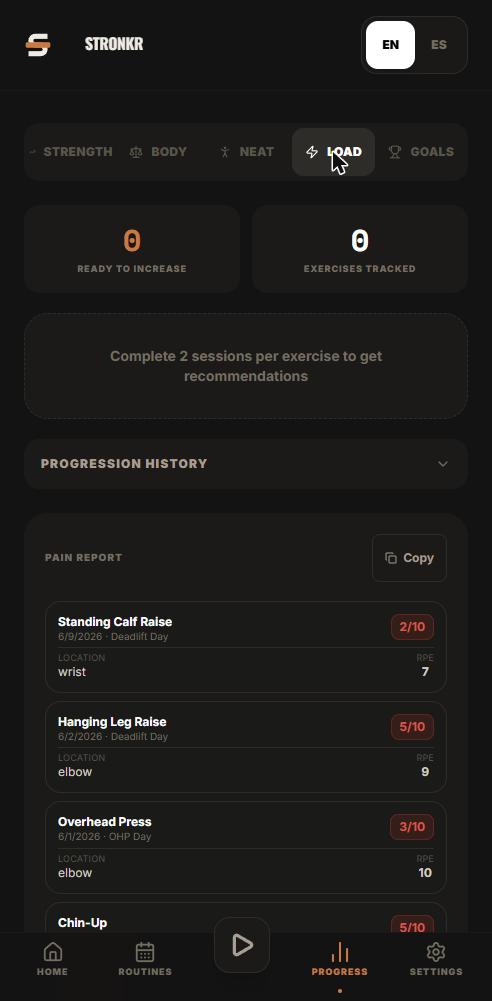
The screen carries the progression history for the lift you select and a ready-to-increase recommendation drawn from your ratings. You do not have to visit it for the loop to work, the next session’s load is set either way, but it is where you check the reasoning when a lift is moving faster or slower than the rest of your routine. Reading the Progress, Load screen goes through push, hold and back off in detail.
PR detection runs in the background across all of it: 1RM, 5RM, volume and estimated 1RM are flagged automatically, so you are not scanning your own history looking for the session where something happened.
Two weeks of this and the spreadsheet stops being load-bearing. That is the actual test.
What does the flow cost you compared to a normal tracker?
One extra field per working set. That is the honest accounting. You already open an app between sets, you already type a weight and a rep count, and the RPE selector is one tap on a scale the app explains from a ? on the same screen.
What you stop doing is the other half: the calculation between sessions, the second app, the sheet with the formula you wrote two years ago and have not fully trusted since. If the tracker you use today were doing that job, you would not be maintaining the sheet alongside it.
Start free at stronkr.com: unlimited routines, the routine generator, RPE auto-progression, ninety-day history, PR and volume tracking, offline, no credit card. It installs from the browser, so there is no app store step between reading this and running one session.
Try auto-regulated training
Stronkr reads your RPE after every set and adjusts next session’s load for you. No spreadsheets, no guessing.
Start training with StronkrFrequently asked questions
How many taps does logging one set take?
Weight, reps, an RPE from the 1-10 selector, then COMPLETE SET. Four inputs and a button, which is roughly what any tracker asks for. The difference is not the effort of logging, it is that the RPE you entered becomes an input to your next session's load.
What does the warm-up MARK control do?
It flags that set as a warm-up rather than a working set, so your log distinguishes the two. Warm-up sets are ramp-up work, not the sets you are trying to rate honestly. Flag them as you go rather than trying to reconstruct which was which afterwards.
What happens if I report pain during a set?
REPORT is the control for flagging that something hurt on that set, so it is recorded against the exercise instead of living in your memory. It is a training record, not medical advice. If a movement keeps triggering it, the swap sheet offers same-muscle alternatives.
When does the new load actually appear?
Next session. Auto-progression is a between-sessions calculation, not a live adjustment, so nothing changes on the bar mid-workout. You finish the session you are in, and the load the engine set from your ratings is waiting the next time that exercise comes up.
Do I need to plan anything before I open the app?
No. Today's session is already built, and the loads on it came from the ratings you logged last time. The routine itself was generated from your equipment, schedule, experience level and injury areas during a roughly two-minute onboarding. There is no weekly planning step to complete before you train.
Keep reading
PRs You Didn't Have to Hunt For: Automatic Record Detection
Automatic pr tracking that runs off your normal sets: Stronkr detects 1RM, 5RM, volume and estimated 1RM records without you flagging a single thing.
Progressive Overload Without a Spreadsheet
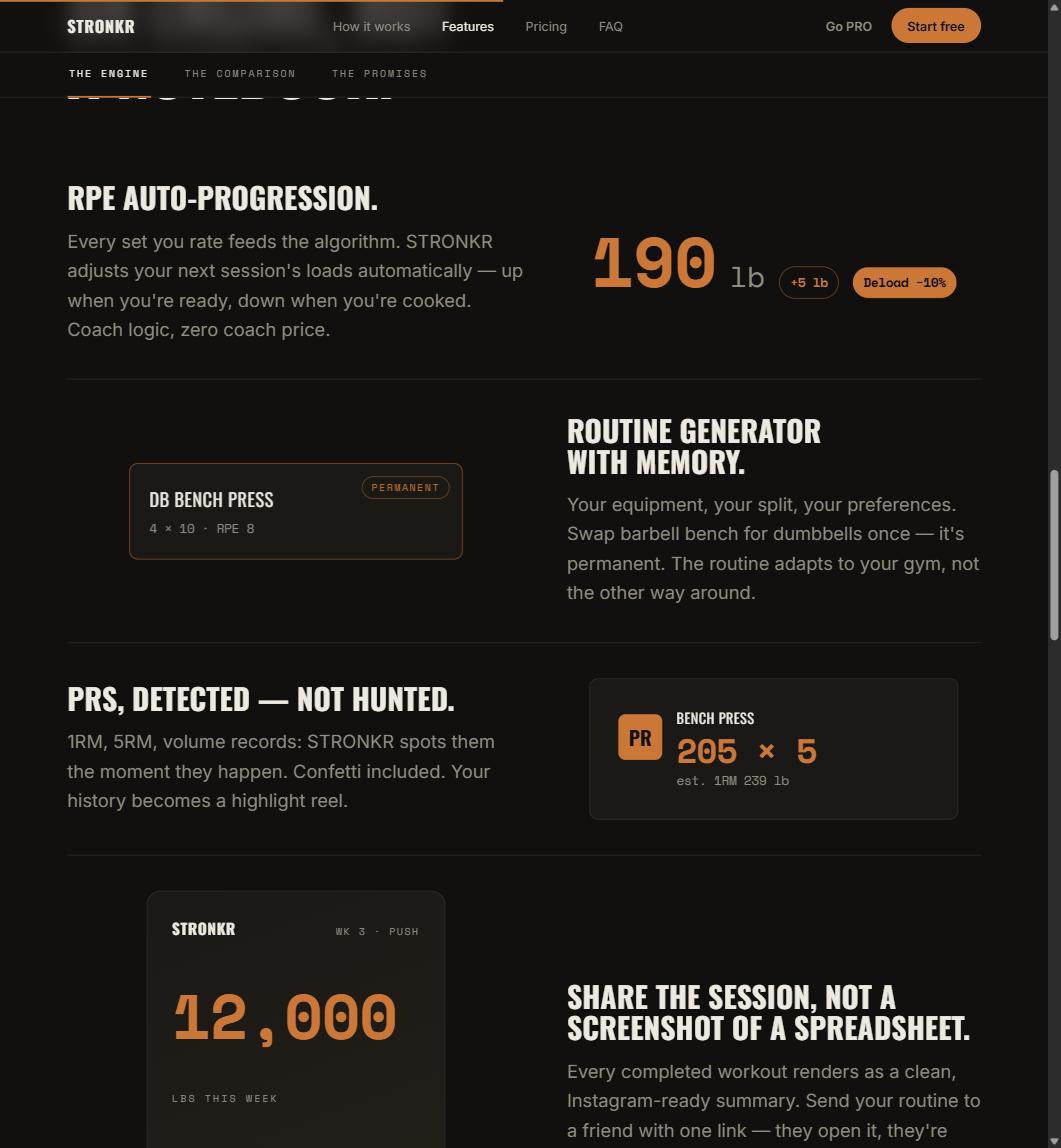
A progressive overload app should do the arithmetic, not just chart it. How Stronkr turns each set's RPE into the next session's load, no sheet needed.
Reading Your Progress, Load Screen: Push, Hold, or Back Off
Strength progress tracking that answers a question: how to read per-exercise progression history and the ready-to-increase recommendation.